SEARCH


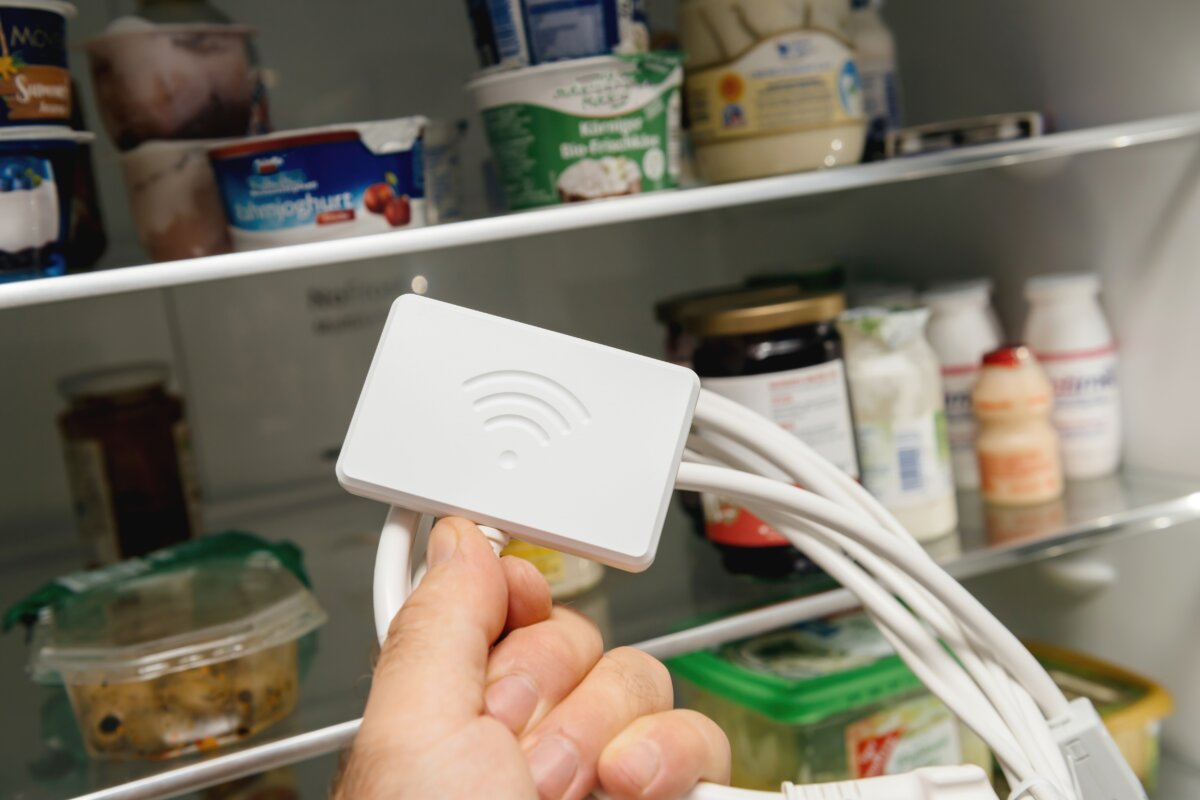
Smart appliances are quick to set up, and for many people, especially older adults, they add real convenience. Some market research predicts that half of U.S. households will have at least one piece of smart technology by next year. Most end up on the same Wi-Fi as everything else in the house, including the laptop you use for online banking.
That shortcut can put a low-security gadget on the same network as your financial accounts. However, a router setting you may already have can keep them apart.
Quick Answer: Should You Put Smart Devices on a Guest Network?
Yes, for most devices that only need internet access. A router’s guest network keeps smart appliances separate from the phones and computers you use for banking, so a compromised device has a harder time reaching them. It isn’t a complete shield, and some devices need the main network to work with their apps.
Why Smart Appliances Can Be a Weak Link
Many connected devices are built to be inexpensive and easy to use, and security gets less attention. As the recent troubles in European supermarkets’ refrigeration systems have shown, appliances are vulnerable to hacking.
Four weak spots are common for household IoT (Internet of Things) devices.
-
Default or hardcoded passwords, shared across many units and easy for attackers to find
-
Firmware that rarely gets updated, leaving known flaws open
-
Support that ends after a few years, so older devices stop receiving security updates
-
Remote access and other features that stay on until you turn them off
The Mirai botnet, which surfaced in 2016, took over large numbers of cameras and other connected devices largely by trying common factory-default logins. It did that with a list of just 62 of them, years before today’s AI tools.
The UK’s National Cyber Security Centre now says AI makes it faster and cheaper for attackers to find and exploit weaknesses like these, so the basics matter more.
Mirai used those devices mainly to knock websites offline, but the risk to your accounts is different. A hacked fridge can’t reach your bank account on its own, but an unpatched device on your main network can give an attacker a path to the computers and phones that hold your passwords and financial files.
Keeping the two apart lowers that risk.
What a Guest Network Does
A guest network lets devices reach the internet while keeping them apart from the rest of your home network. Federal cybersecurity guidance recommends putting smart home devices on guest Wi-Fi when they only need internet access, which keeps them from discovering other devices or reaching your router settings.
How to Set Up a Guest Network for Smart Devices
Menus differ by brand and internet provider, so your screens may look different.
-
On the back or bottom of your router, you’ll usually find a label with its address (a number such as 192.168.1.1) and default login details. If you use a mesh system or provider app, you may be able to make the changes there instead.
-
From a phone or computer on your Wi-Fi, type that address into a web browser and sign in. (Note: If the admin login is still the factory default, change it, since default logins are easy to find online).
-
Under a menu such as “Guest Network” or “Guest Wi-Fi,” switch the guest network on and give it a long, unique password and a name that doesn’t include personal details.
-
(Helpful, but not necessary: Since you’re already in the router settings, look for firmware updates and turn on automatic updates. Also, consider using WPA3 or WPA2 AES encryption if your router offers these.)
-
Check that guest devices can’t reach your main network. Depending on the brand, that means turning off a setting such as “allow guests to access local network” or “intranet access.” If your router offers client or AP isolation, turn it on, too, so guest devices can’t see each other.
-
Reconnect each smart appliance to the guest network through its app. Many smart devices use only the 2.4 GHz band, so if one won’t connect, check that your guest network supports it.
-
Back in the router settings, turn off WPS, and turn off UPnP once your devices are connected.
When a Guest Network Isn’t Enough
Some devices, such as casting devices and printers, need to be on the same network as your phone to work.
If an app can’t find a device after you switch Wi-Fi networks, try setting it up on the main network first and switching it afterward. If that fails, leaving that one device on the main network is a reasonable trade-off.
Some routers also offer a separate network just for smart devices, which can keep them apart from both your guests and your main network.
Other Habits That Protect Your Money
-
Unique passwords for every device and manufacturer account, ideally stored in a password manager
-
Multi-factor authentication on bank and email accounts
-
Built-in cameras and remote access turned off when you don’t use them
-
Bank and card alerts that flag unusual activity early
If you help a parent or grandparent with their devices, write down the router login and Wi-Fi details and keep them somewhere safe for future reference.
FAQs: Smart Home Network Security
Can a Smart Fridge Be Hacked?
Yes, it’s possible. Devices with default passwords or outdated firmware are easier targets. A compromised fridge is unlikely to reach your bank directly, but it could give an attacker a way into your network. Keeping it on a guest network and updating its software lowers that risk.
Is a Guest Network Secure Enough for Smart Devices?
It’s a solid start, but how well it works depends on your router. Make sure guest devices can’t reach your main network, and turn on client isolation to keep them from seeing each other. A guest network isn’t a full firewall, so strong passwords and regular updates still matter.
Will Smart Devices Still Work on a Guest Network?
Most do. Devices that only need internet access, such as many smart fridges and ovens, work fine. Devices that talk directly to your phone, including casting devices and printers, may not. If a device stops responding, try setting it up on the main network first and moving it afterward.
What Should You Do With a Device That No Longer Gets Updates?
Check the maker’s website or app to confirm whether support has ended. If it has, keep the device on the guest network and turn off remote access and any features you don’t use. Plan to replace it, especially if it has a camera or microphone.
The Epoch Times copyright © 2026. The views and opinions expressed are those of the authors. They are meant for general informational purposes only and should not be construed or interpreted as a recommendation or solicitation. The Epoch Times does not provide investment, tax, legal, financial planning, estate planning, or any other personal finance advice. The Epoch Times holds no liability for the accuracy or timeliness of the information provided.