SEARCH


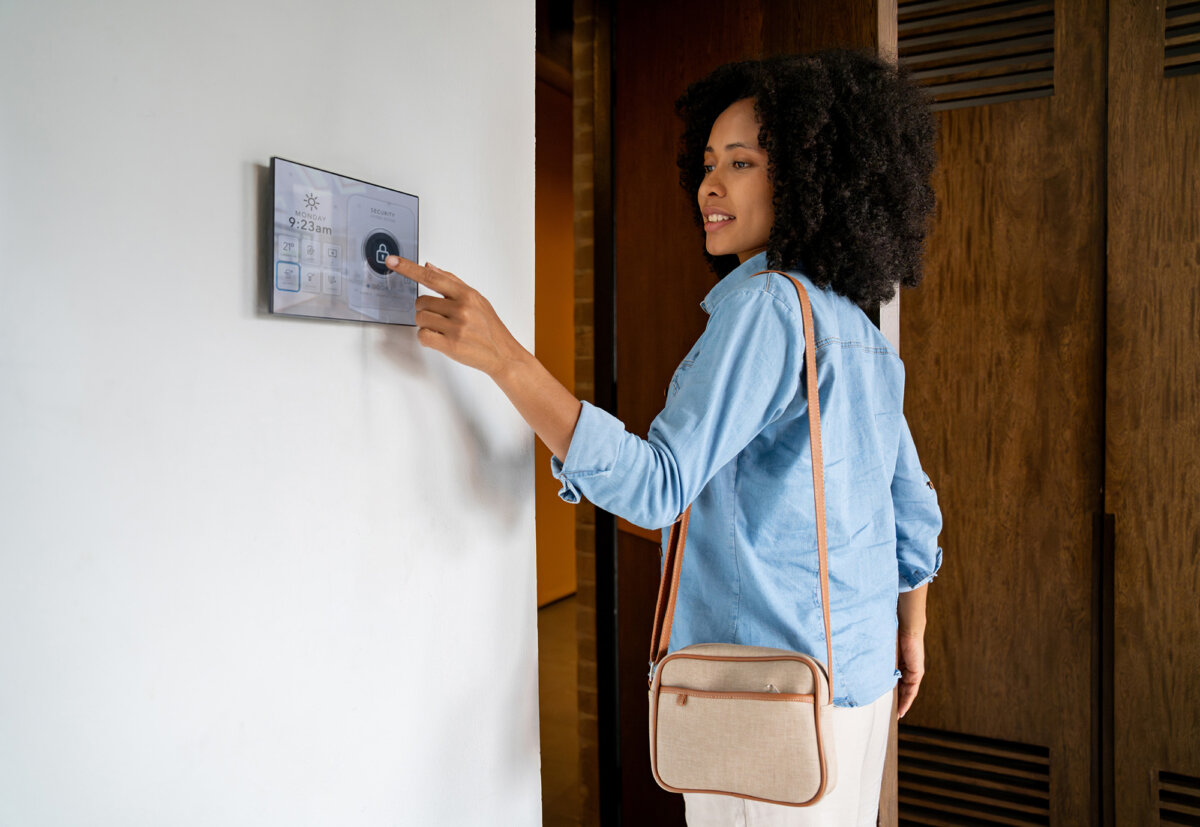
There are three main reasons to get a home automation system: convenience, improved energy efficiency, and the opportunity to create a customized security system. Smart-home systems automate everyday tasks and offer remote control that functions even when the homeowner is away from the property.
Of course, that’s when the gadgets work correctly, which unfortunately is not always the case. With a little technical know-how, however, a homeowner can troubleshoot any wrinkles and create a safer and more functional home environment.
Wi-Fi Woes
Most modern smart homes are connected to Wi-Fi. If they can’t connect, they become pretty paperweights. If your smart home is offline, check the router status—if it’s good, reset the Wi-Fi connection on the smart-home system or on each individual device if they’re controlled by a smartphone app. If that doesn’t work, restart the router, system, and devices. If the hub or device is located far from the router, it may be an issue with the signal strength, in which case you may need a Wi-Fi range extender.
Metal, stone, and other physical barriers can interfere with the Wi-Fi signal, as can stereos and TVs and other Wi-Fi-connected devices. In this scenario, reposition them as needed.
If the problem is with a new smart device, it may not be compatible with the current router, and an upgrade may be in order. This can happen, since most smart-home systems use 2.4 GHz for better range, while some routers provide only 5 GHz. It’s also a good idea to regularly update the device’s and the router’s firmware every few months for optimized compatibility.
The Major Platforms
If you’re using Amazon Alexa, Google Home, or Apple HomeKit and the smart-home system seems “dumbed down,” the platform may be experiencing problems. When that happens, devices in the smart-home system utilize local connectivity or simply stop working. There’s nothing to do about this except be patient.
Another option is upgrading to a mesh network, which requires a little bit of advanced knowledge to set up but provides superior service to every nook and cranny of the home. Be sure that the current devices and protocols are compatible with the mesh system chosen.
The Matter smart-home protocol is designed to work with all three major platforms and is indicated by the logo on compatible device boxes. Some protocols may require a bridge. The easiest solution is to buy a mesh router, which can be transformed into a smart-home hub via network settings or router nodes. However, Amazon Alexa, Google Home, and Apple HomeKit work with different mesh routers, so shop carefully.
If a compatible device fails to pair or disconnects regularly, perform a factory reset on it. Then re-pair the item as close to the hub as possible; it can be repositioned after a successful pairing. Remove old or duplicate devices from the app.
Automation Failures
Routing not running correctly? Check that all the devices required for the routing are online. Next, check for overlapping schedules. Ideally, stagger various actions by at least a few seconds to lessen network load. And consider switching the most important routing to local processing in order to reduce cloud delays.
If everything seems fine but the devices continue to lag, set the router QoS (quality of service) to prioritize IoT (Internet of Things) traffic, and switch the hub connection from Wi-Fi to an Ethernet cable, which avoids wireless interference and signal strength problems.
Voice Assistant Glitches
Be clear and concise when speaking. Consider renaming devices with simple names and grouping devices into rooms. Disconnect and re-link devices that aren’t in sync. Other common causes of problems include an accidentally muted microphone, weak Wi-Fi, background noise, and cloud delays.
Security
Security cameras protect the outside of the home, but router firmware needs to protect network traffic and connected devices. Upgrade it to WPA3 security if supported. Also, use strong, unique passwords and usernames and enable multi-factor authentication. If possible, put the system on a separate dedicated Wi-Fi network for added safety by creating a guest network for the 2.4 GHz frequency band.
If the budget allows, put the system on a UPS (uninterruptible power supply) battery backup for power interruptions.
_____________________________
Quick Tricks
Shorten the length of recorded video clips and increase security checks to help preserve the battery life of smart security cameras.
False Alarms
Place security cameras out of direct sunlight or other strong light sources. Set tight activity zones that exclude bushes, trees, and other moving foliage. Enable artificial intelligence filters to focus on people and vehicles rather than animals and shifting shadows. Low batteries can lead to erratic performance.
Smart Flicks
To reset a smart bulb to factory settings, turn it on and off several times—typically three to five times depending on the manufacturer. It will flash to confirm the reset. Smart plugs should be unplugged for 30 seconds for a soft reset. For a full reset, hold the power button for 10 to 15 seconds until the LED blinks rapidly.
’Tis the Season
Smart holiday lights often require use of their dedicated app to get all the enhanced features. When the device is not recognized, or things have simply locked up and a 10-second unplug has not fixed the situation, it’s time to remove and reinstall the app to remove any corrupted pairing data and software glitches.